
Last updated on November 18th, 2026 at 03:23 pm
The PowerPoint shortcut keys worth learning first are Ctrl+M for a new slide, Ctrl+S to save, F5 to start the slide show and Esc to end it on Windows. On Mac, a new slide uses Command+Shift+N. Shortcuts depend on your operating system, selection and presentation mode, so a Windows list cannot simply be relabelled for Mac.
A finance presentation rarely fails because its author cannot find the Bold button. It fails because a number changes, an old label survives or a reviewer cannot follow the argument. Use shortcuts to reduce repetitive work, then spend that time checking the story. This guide groups commands by the task you are doing and walks through a fictional reporting slide.
PowerPoint shortcut keys: a quick reference
The Windows commands below refer to the desktop application and a US-style keyboard. A plus sign means hold keys together. A comma means press the next key in sequence. Click into the intended pane or select the intended object first. The same key combination can perform a different action in Slide Show mode.
| Task | Windows desktop | Mac desktop |
|---|---|---|
| New presentation | Ctrl+N | Command+N |
| New slide | Ctrl+M | Command+Shift+N |
| Duplicate selected slide | Ctrl+Shift+D | Command+Shift+D |
| Save | Ctrl+S | Command+S |
| Undo | Ctrl+Z | Command+Z |
| Insert hyperlink | Ctrl+K | Command+K |
| Start show from beginning | F5 | Command+Shift+Return |
| End slide show | Esc | Esc |
| Close current presentation | Ctrl+W | Command+W |
These are deliberately short lists rather than a claim to cover every version. Microsoft’s creation and editing reference separates Windows, macOS and web shortcuts. Use the tab for your platform when a command behaves differently. On some laptops, the Fn key determines whether F5 reaches PowerPoint or a hardware control.
PowerPoint shortcut keys for creating and organising slides
Start with Ctrl+M when you want a new slide. Use Ctrl+Shift+D when you want a copy of the selected slide, including its content. Duplicating is useful for a repeated reporting layout, but it also copies old figures, dates, notes and chart labels. Treat every duplicate as an unfinished slide until those items have been checked.
Selection matters. Click the slide thumbnail to work with the whole slide; click a shape border to work with that shape; click inside a text box to edit its words. If Ctrl+A selects a paragraph when you expected every object, the insertion point is still inside text. Press Esc and inspect the selection before issuing another command.
| Windows task | Shortcut | Where to put the focus |
|---|---|---|
| Next or previous slide | Page Down / Page Up | Slide or thumbnail pane. |
| Move selected slide up or down | Ctrl+Up / Ctrl+Down | Thumbnail pane. |
| Move slide to beginning or end | Ctrl+Shift+Up / Ctrl+Shift+Down | Thumbnail pane. |
| Cycle between panes | F6 | Press repeatedly until the intended pane is active. |
| Open an existing file | Ctrl+O | Normal editing mode. |
| Save a separate copy | Ctrl+Shift+S | Review the destination and file type before saving. |
Edit text and objects without losing control
For routine text work, these PowerPoint shortcut keys are useful: Ctrl+B, Ctrl+I and Ctrl+U apply bold, italic and underline. Ctrl+L, Ctrl+E and Ctrl+R align a paragraph left, centre and right. Ctrl+K inserts a hyperlink. Select only the text that needs the change, rather than formatting a whole text box by accident.
Tab moves between objects on a slide; Shift+Tab reverses direction. This can help select an overlapping object without dragging another one out of position. If you use the arrow keys to move a shape, inspect its position afterwards. Precision of movement is separate from whether the object is aligned to the slide’s grid or to another object.
| Windows task | Shortcut | A practical check |
|---|---|---|
| Cut, copy and paste | Ctrl+X / Ctrl+C / Ctrl+V | Confirm the destination and paste format. |
| Duplicate a selected object | Ctrl+D | Check that the new copy does not cover the old one. |
| Group selected objects | Ctrl+G | Group only objects that should move together. |
| Ungroup | Ctrl+Shift+G | Review whether individual objects have shifted. |
| Find text | Ctrl+F | Search for old month names and company labels. |
| Replace text | Ctrl+H | Review matches; avoid a blind replace-all in financial labels. |
| Open Font dialog | Ctrl+T | Apply the intended size and style to the selected text. |
Formatting is not a data-quality check. A beautifully aligned chart can still contain the wrong period or unit. When a slide comes from an Excel financial model, record the source sheet, version and reporting date in your working notes. Reconcile the figures before polishing the slide.
Use Windows ribbon shortcuts as visible key sequences
To find PowerPoint shortcut keys on the ribbon, press Alt to reveal its KeyTips. Then press the displayed letters in order. For example, Alt+H opens Home. With the relevant object or text selected, Alt+H, F, S opens the font-size control. Do not hold every letter at once: the comma describes a sequence.
| Windows ribbon action | Key sequence |
|---|---|
| Choose a layout | Alt+H, L |
| Choose a theme | Alt+G, H |
| Insert a text box | Alt+N, X |
| Insert a shape | Alt+N, S, H |
| Insert picture from device | Alt+N, P, D |
| Move to Search / Tell Me | Alt+Q |
Ribbon labels, installed add-ins and keyboard layouts can alter what you see. Use the KeyTips currently displayed rather than memorising an outdated chain. If a sequence stops working after an update, Esc returns you out of a menu; start again from the visible ribbon.
PowerPoint slide show shortcut keys
| During a Windows slide show | Shortcut | Use |
|---|---|---|
| Start from current slide | Shift+F5 | Rehearse the slide you are editing. |
| Open Presenter View | Alt+F5 | Check notes and presenter controls. |
| Next animation or slide | N, Enter or Right Arrow | Advance one step; a step may be an animation. |
| Previous step | P or Left Arrow | Return one step. |
| Go to a specific slide | Slide number, then Enter | Jump directly to a prepared appendix slide. |
| Blank black screen | B | Pause the visual while you speak; B restores it. |
| Blank white screen | W | Use when a white pause screen suits the room. |
| Pen / laser pointer | Ctrl+P / Ctrl+L | Annotate or point while presenting. |
| End the show | Esc | Return to editing rather than closing the file. |
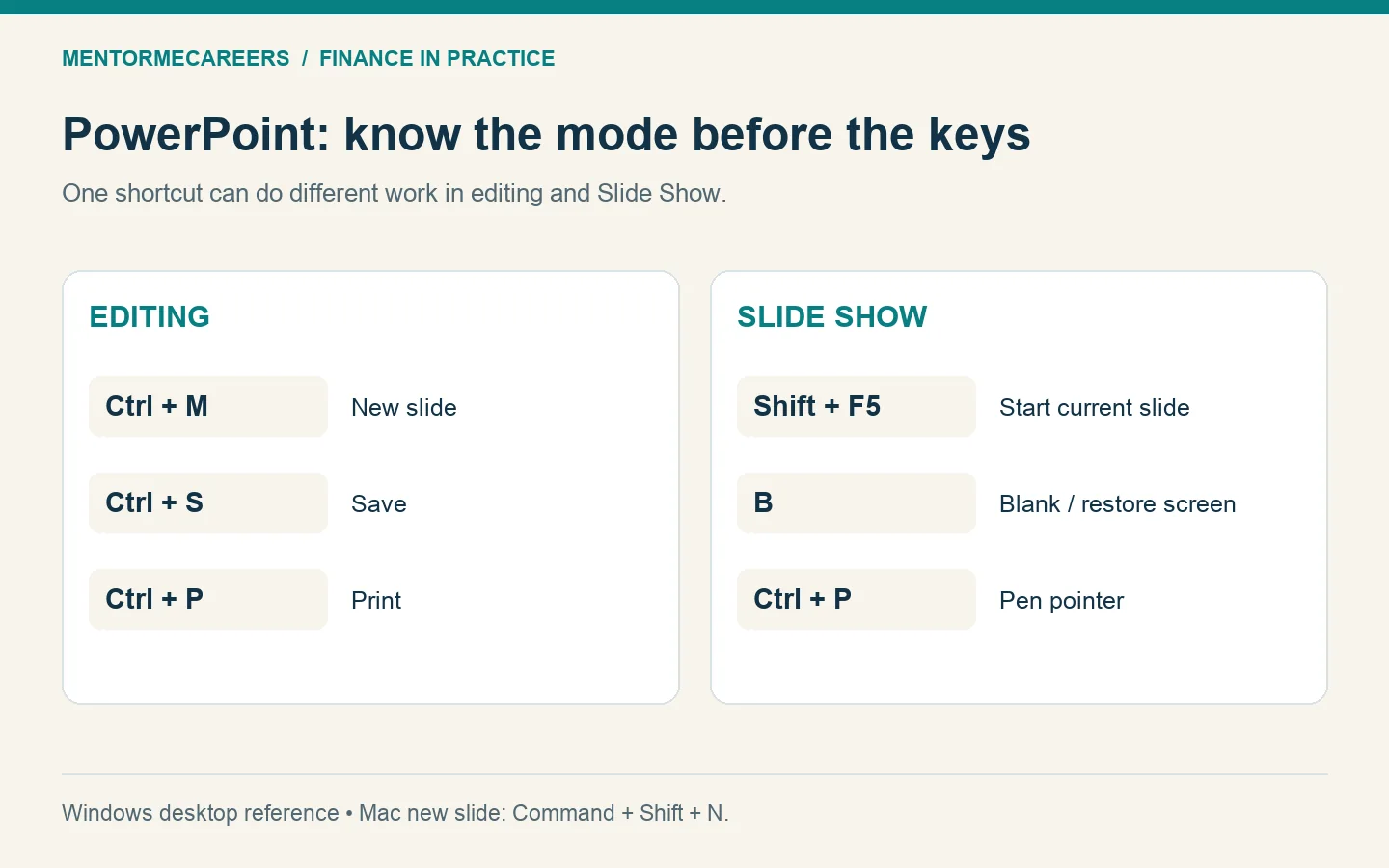
Notice the mode change: Ctrl+P prints while editing but activates the pen during a Windows slide show. Ctrl+L aligns text in editing mode but selects the laser pointer in the show. Test the presentation setup before a meeting, especially when using a remote keyboard or a second display. Microsoft’s delivery reference documents the presentation controls separately.
Worked exercise: build and check a quarterly revenue slide
Use a blank practice file and fictional data. Product A has revenue of ₹60 lakh, Product B ₹30 lakh and Product C ₹10 lakh. The total is ₹100 lakh, so their shares are 60%, 30% and 10%. This is a communication exercise, not a forecast or an investment recommendation.
- Create a slide with Ctrl+M. Choose a layout with a clear title and room for a small chart.
- Type a conclusion-led title such as “Product A contributes 60% of revenue”. Add the reporting period and ₹ lakh unit.
- Insert a simple chart or three labelled shapes. Use Tab to move between selected objects and Ctrl+D only when you deliberately want an object copy.
- Save with Ctrl+S. Duplicate the slide with Ctrl+Shift+D to practise a second period, then change every label and value that needs changing.
- Use Ctrl+F to search the deck for the old period. Read the chart title, axis, footnote and speaker notes as well.
- Rehearse with Shift+F5. Use B to pause, restore the slide, and press Esc to return to editing.
The arithmetic check is 60 + 30 + 10 = 100 and 60% + 30% + 10% = 100%. A useful spoken conclusion explains the concentration in Product A, not just the existence of three bars. If a new period changes total revenue, update the percentages from that new total rather than carrying them forward.
For spreadsheet preparation, use our free Excel course and advanced Excel syllabus. If you want to practise turning analysis into a finance work sample, review the financial modelling course and check its current syllabus before enrolling.
PowerPoint shortcuts PDF: keep a usable offline copy
For an offline reference, print this page or save it as PDF through your browser’s Print dialog. Choose the required pages in the preview and check that each table fits before saving. The reference tables identify the platform and mode so they remain meaningful when copied into a practice sheet.
Build a personal list of the ten PowerPoint shortcut keys you actually use. Record the action, platform and selection needed beside each shortcut. Practise them on a copy of a deck; speed is useful only when it does not introduce mistakes.
Why a shortcut may not work
- Wrong focus: a text cursor, slide thumbnail, chart or ribbon control may receive the command. Check the selection first.
- Wrong application: PowerPoint for the web shares some shortcuts with the browser. Use the correct platform reference.
- Function-key behaviour: a laptop may send a brightness or media command unless Fn is held.
- Different keyboard layout or macOS setting: check the displayed command and any system conflict.
- Wrong mode: editing, Slide Show and Presenter View use different controls.
PowerPoint shortcut keys: common questions
What is Ctrl+M in PowerPoint?
In Windows desktop editing, Ctrl+M inserts a new slide. During a slide show, the same command has a different use. On Mac desktop, use Command+Shift+N for a new slide.
What is Ctrl+K in PowerPoint?
Ctrl+K opens the hyperlink command in Windows editing mode. Select descriptive text first, add the intended destination and test the link. On Mac, use Command+K.
What does F5 do?
F5 starts the Windows slide show from the beginning. Shift+F5 starts from the current slide. If a laptop intercepts the function key, check its Fn setting.
Is the 7-7-7 rule compulsory?
No. It is an informal presentation heuristic, not a PowerPoint requirement or an accessibility standard. Use the amount of text needed to make one clear point. Move supporting detail into notes or an appendix instead of forcing every finance slide into a fixed word count.
How do I close a presentation without quitting PowerPoint?
In Windows desktop, Ctrl+W closes the current presentation; Command+W does so on Mac. Check save prompts carefully. Esc ends a slide show but does not close the presentation file.

A CFA charterholder with hands-on experience across investment analysis and finance education. At MentorMeCareers, he writes and reviews content on CFA, financial modeling, and investment banking careers — grounded in real market data rather than generic advice, and shaped by what actually helps candidates and professionals succeed.